Notifications
Strimma maintains a persistent foreground notification so you can see your glucose without opening the app.
Foreground Notification
The foreground notification is always visible while Strimma is running. It serves two purposes:
- Quick glucose reference — see your BG, trend, and history at a glance
- Android requirement — Android requires foreground services to show a notification
Collapsed View
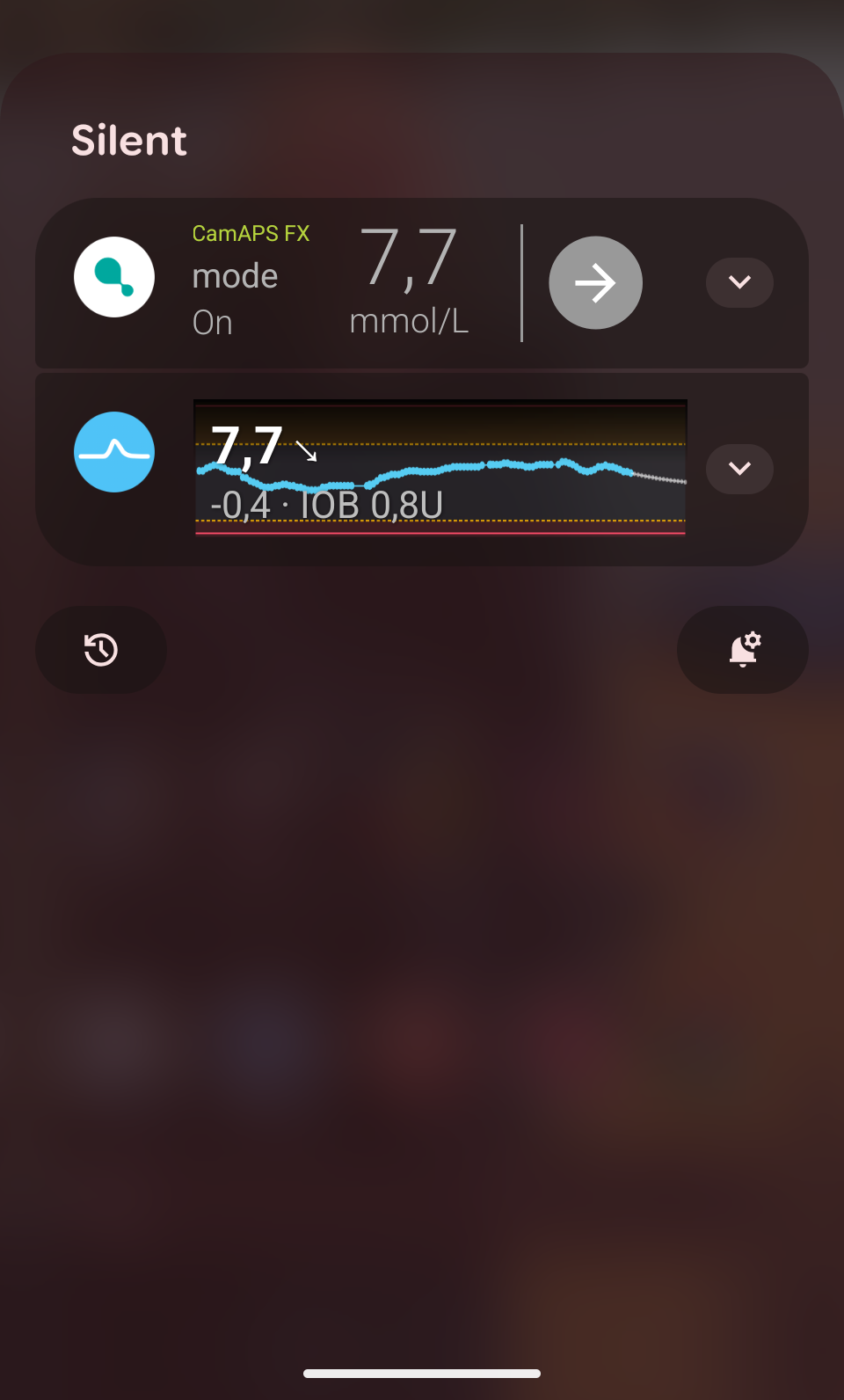
The notification bar shows:
- Small icon — your current BG value rendered as a tiny bitmap (visible in the status bar)
- Title — glucose value and direction arrow (e.g., "108 →")
- Subtitle — delta, prediction warning, and IOB (e.g., "+5 · Low 10m · IOB 2.3U")
Expanded View
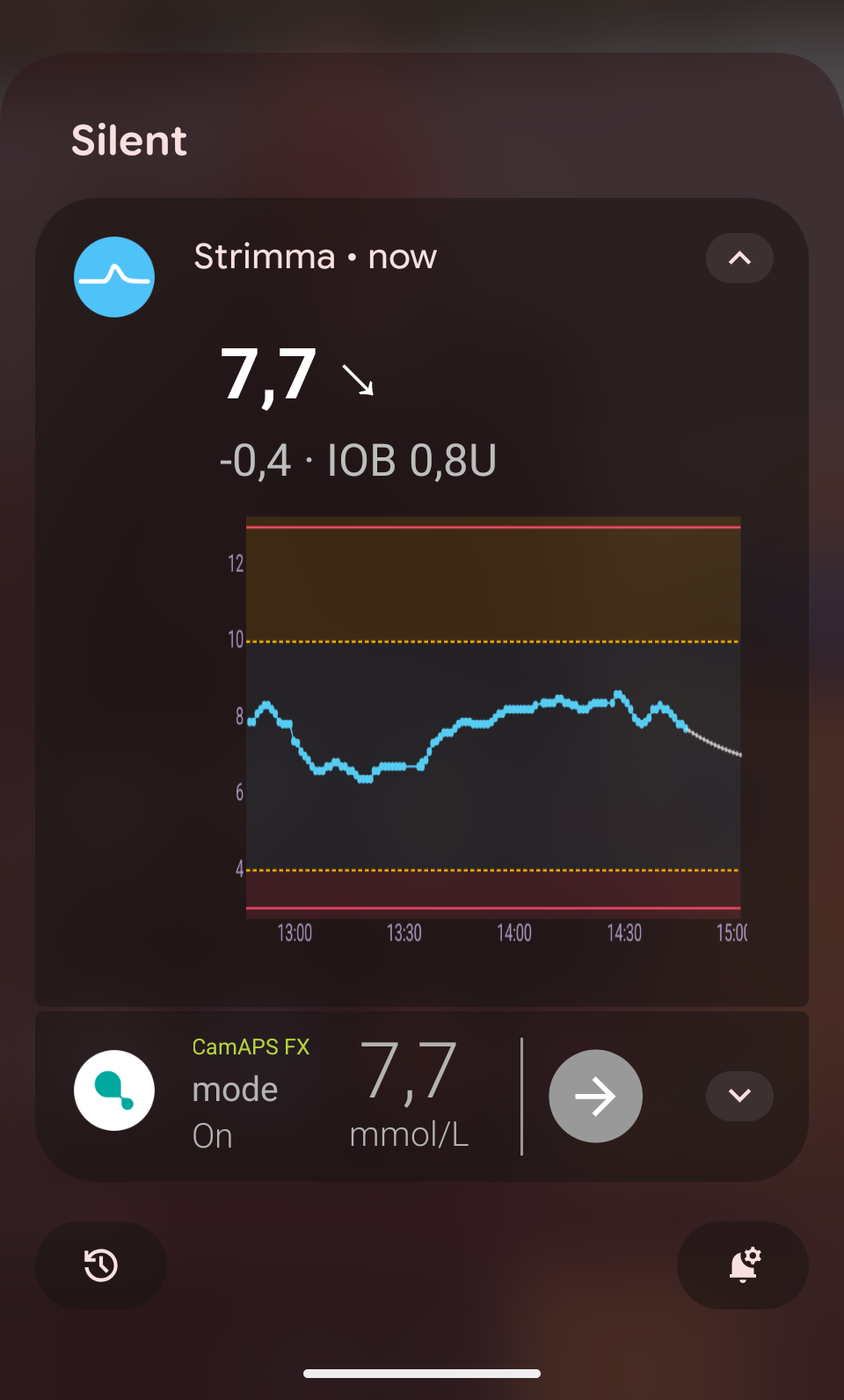
Pull down the notification to see:
- All the information from the collapsed view
- Glucose graph — a 1-hour history rendered as a bitmap, showing:
- Color-coded readings (cyan/amber/red)
- In-range zone band
- Threshold lines
- Prediction curve (dashed line extending into the future)
- Time axis labels
Notification Graph Settings
Configure the notification graph in Settings > Notifications:
| Setting | Options | Default |
|---|---|---|
| Graph time range | 30 min, 1 hour, 2 hours, 3 hours | 1 hour |
| Prediction window | Off, 15 min, 30 min | 15 min |
Subtitle Components
The notification subtitle packs multiple pieces of information, separated by ·:
- Delta — how much glucose changed (e.g., "+0.3" or "-1.2"). Uses compact format without units.
- Prediction warning (optional) — only shown when you're in range and a crossing is predicted: "Low 10m" or "High 5m".
- IOB (optional) — only shown when treatment sync is enabled and IOB > 0: "IOB 2.3U".
Example: +0.3 · Low 10m · IOB 2.3U
If there's no prediction and no IOB, the subtitle just shows the delta: +0.3
Silent by Design
The foreground notification is silent — no sound, no vibration, no badge. It's informational, not alerting. You'll see it in the notification shade and status bar, but it won't interrupt you.
Glucose alerts (low, high, urgent) are separate notifications with their own sounds and vibration. See Alerts.
Troubleshooting
The notification disappeared
Android may kill the foreground service if battery optimization is enabled. Go to Settings > Apps > Strimma > Battery > Unrestricted to prevent this.
The graph looks wrong
The notification graph renders as a bitmap at fixed resolution. On some devices with unusual display densities, it may look slightly different. This doesn't affect the data accuracy.
I want to hide the notification
The foreground notification is required by Android for background services. You can minimize it by long-pressing the notification, tapping the settings icon, and selecting Silent. You cannot fully hide it without stopping Strimma.